Connect to WiThrottle Server
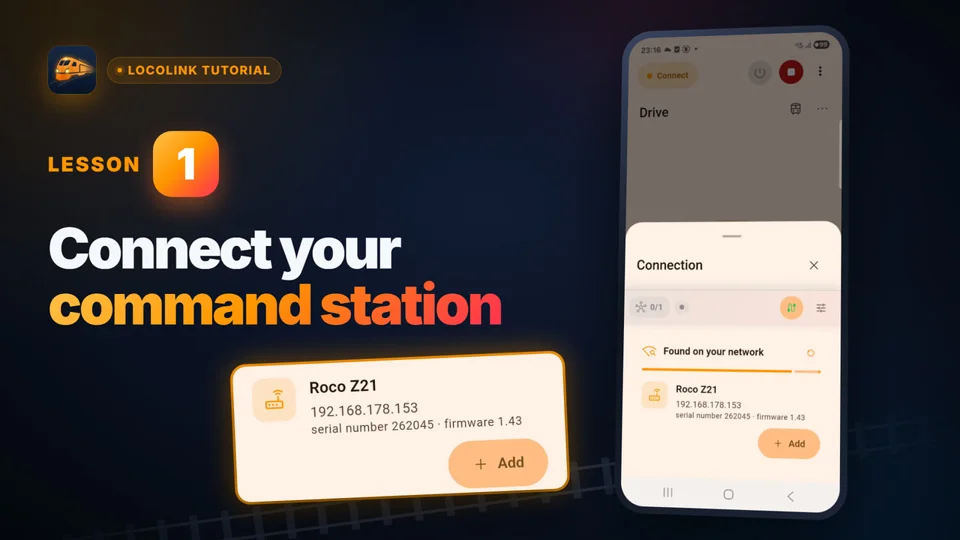
Enter the JMRI computer address and the port shown by WiThrottle Server, commonly 12090.
LocoLink client for JMRI WiThrottle Server
LocoLink can connect as a WiThrottle client to a running JMRI WiThrottle Server on the same local network. Use LocoLink on Windows, Mac, iPhone or iPad for track power, locomotive speed and direction, decoder functions and turnout commands while JMRI remains the hardware bridge.
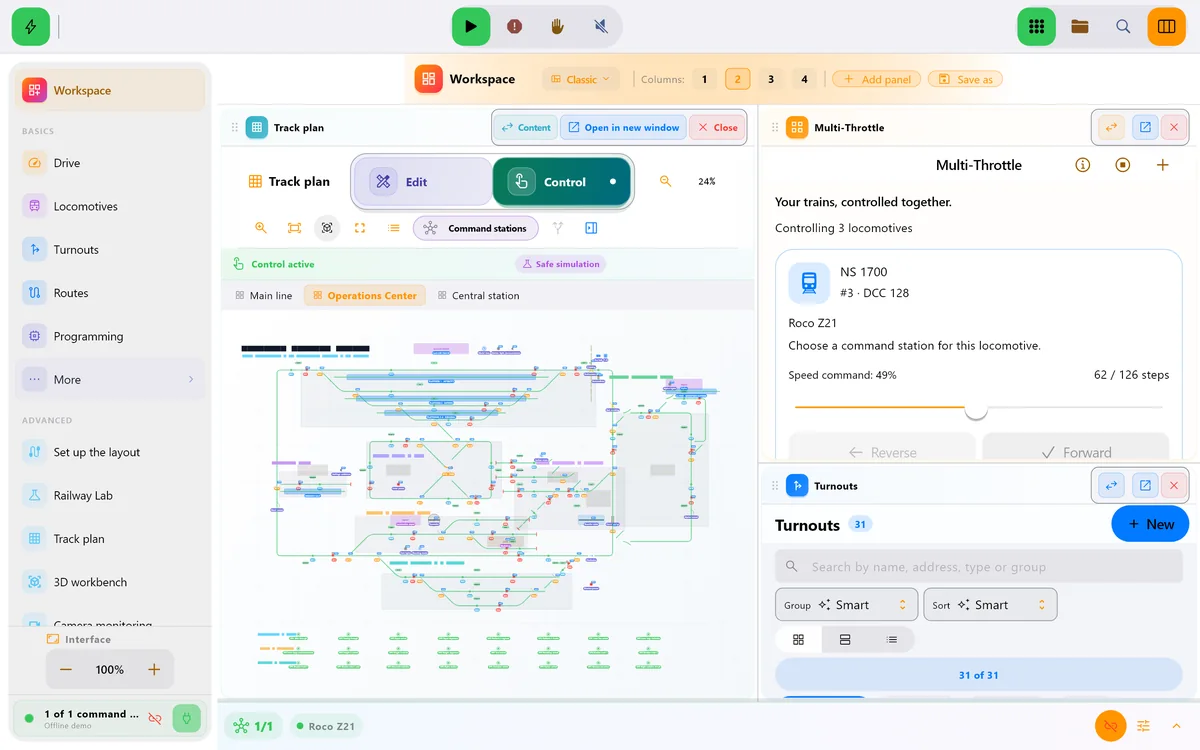
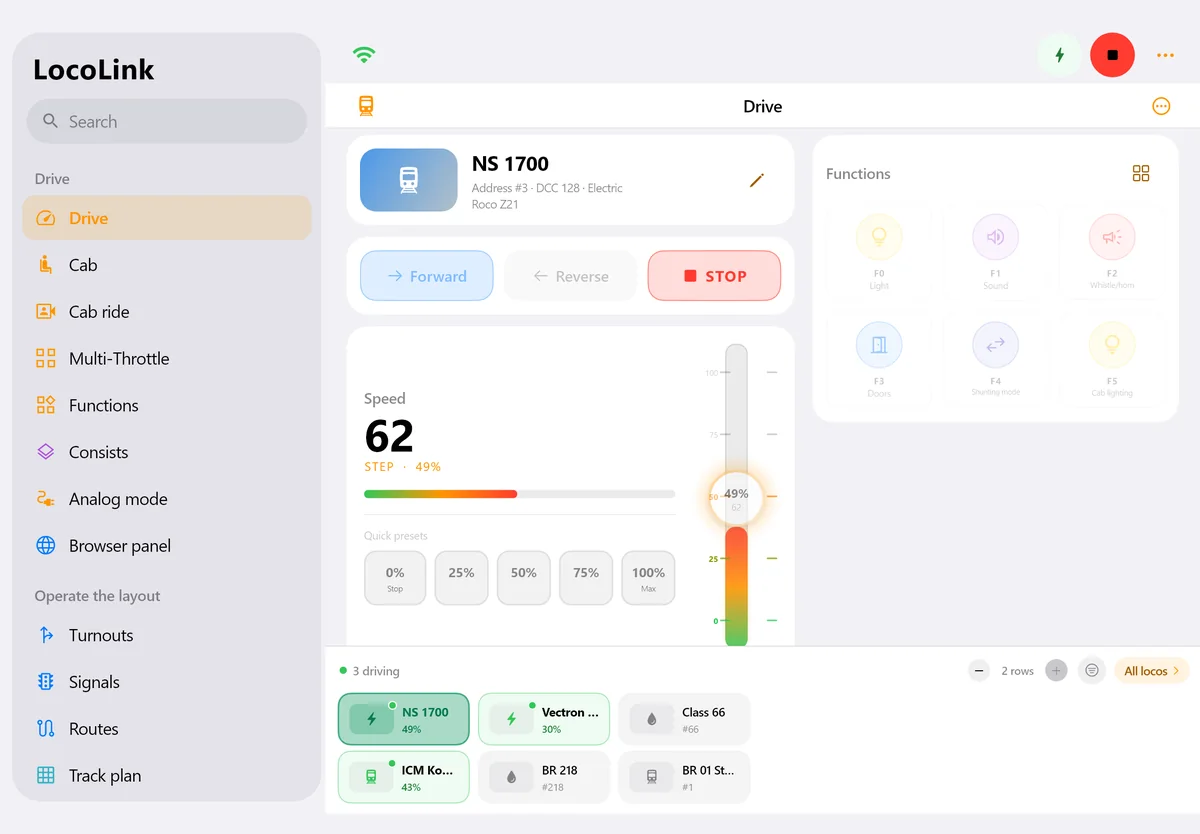
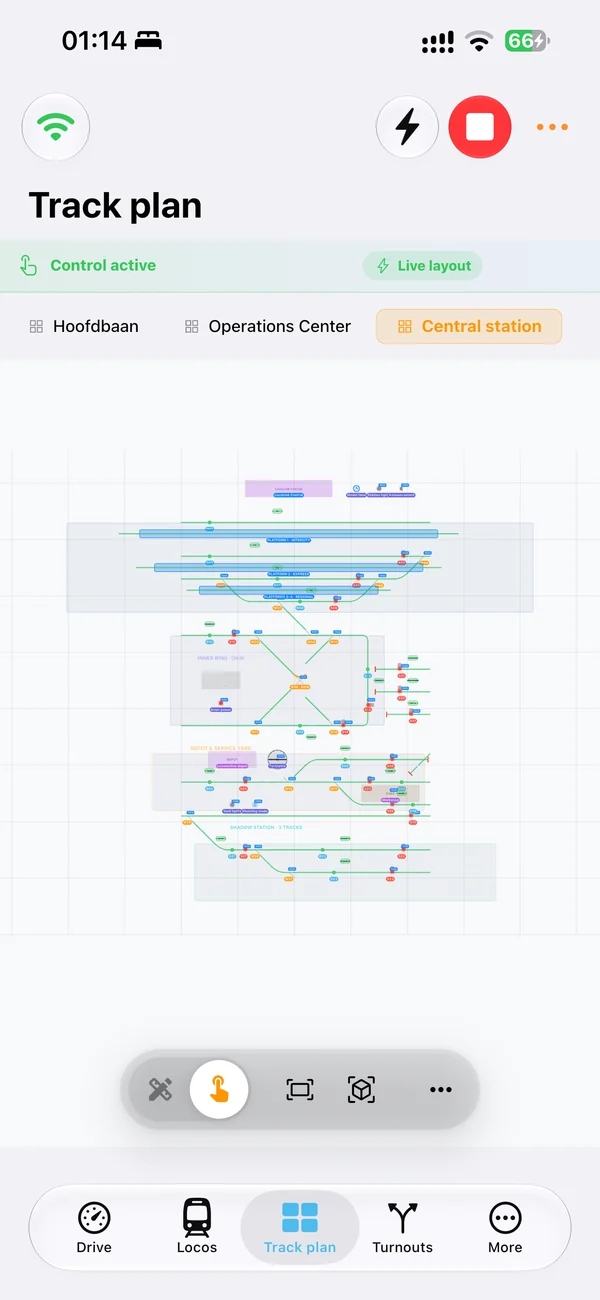
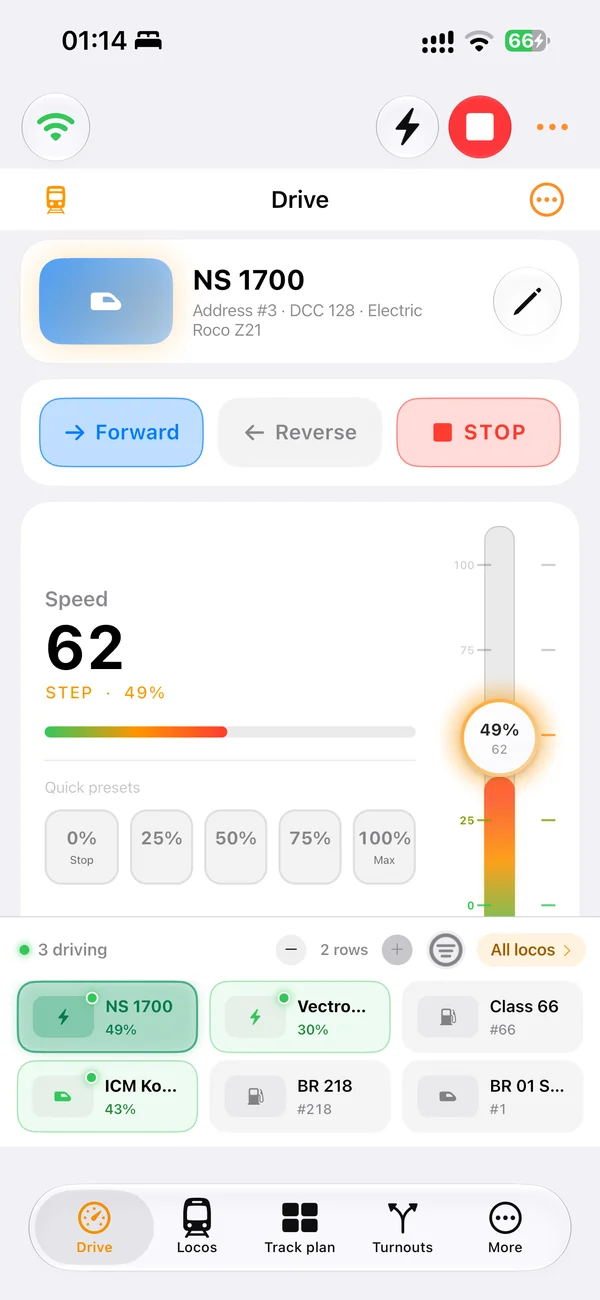
Real screens of LocoLink 2.0 on Windows, Mac, iPad and iPhone.
Verified client scope
The WiThrottle route is deliberately described as a client/server connection. Feature availability still depends on the current LocoLink platform, JMRI version, WiThrottle preferences and connected command station.
Enter the JMRI computer address and the port shown by WiThrottle Server, commonly 12090.
Read and change the power state through the WiThrottle connection before operating a locomotive.
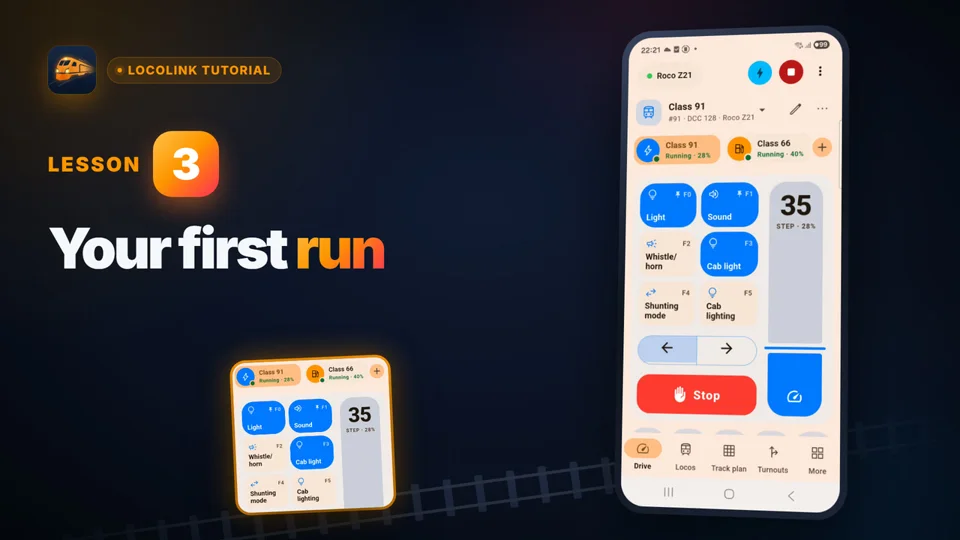
Acquire an address, set speed and direction, and keep emergency stop immediately available.
Operate available function numbers through the active JMRI throttle connection.
Send turnout commands through JMRI using its published WiThrottle panel messages.
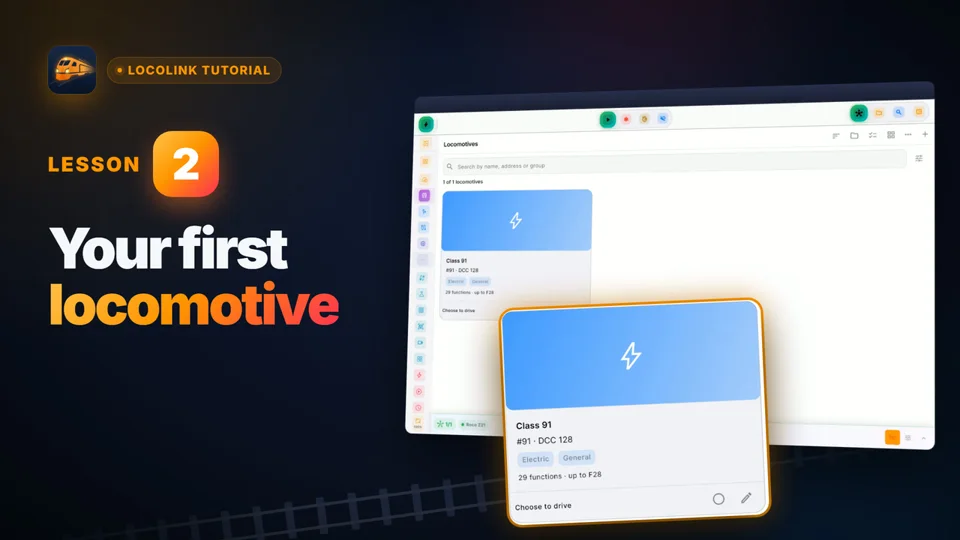
Use LocoLink’s roster, throttles and visual track plan around the same operating workflow.
Local setup
Keep the JMRI computer awake, use the local network and test one low-speed address before relying on the complete layout.
Open the WiThrottle Server window in JMRI and note the local IP address and port it displays. Confirm that JMRI already controls the command station.
Use the shown JMRI computer address and port. Apple devices need Local Network permission; a firewall must allow the JMRI connection.
With one locomotive on a clear section, test track power, emergency stop, address, low speed, direction and one known function before adding turnouts or a full track plan.
Connection boundary
This route uses JMRI’s published WiThrottle protocol. It is different from LocoLink’s direct native connections to systems such as Z21 or DCC-EX.
| Part | Responsibility | Important limitation |
|---|---|---|
| LocoLink | Operator interface for track power, locomotives, functions, turnouts and the LocoLink project | Android app coming soon |
| JMRI WiThrottle Server | Accepts the local client connection and translates supported WiThrottle actions into JMRI controls | JMRI must remain running and the WiThrottle Server must be enabled |
| JMRI hardware connection | Connects JMRI to the configured command station and railroad interfaces | Hardware support and exact behaviour are determined by JMRI and the selected system |
| Local network | Carries the TCP connection between LocoLink and the JMRI computer | Guest isolation, firewalls, sleep mode or a wrong subnet can break the route |
| Roster and panel data | JMRI may publish roster, function-label, turnout and route information to compatible clients | The visible subset can differ by LocoLink platform and JMRI configuration |
| Decoder programming | Use the documented programming workflow for the connected command station | Do not assume every DecoderPro operation is exposed through WiThrottle |
Compatibility reviewed . JMRI publishes the authoritative WiThrottle protocol and server and client guide. LocoLink is independent software and is not an official JMRI product.
JMRI connection explained
LocoLink is independently developed by Westerman. It is not produced, certified or endorsed by the JMRI project. JMRI names the open-source server and hardware bridge; the app on this page is called LocoLink.
Start JMRI and confirm that its own throttle can control the exact command station. Then open WiThrottle Server. LocoLink connects to the local TCP address and port shown in that window. The common default port is 12090, but the value displayed by JMRI is the one to use.
Keep the JMRI computer awake. If it sleeps, closes the server or becomes unreachable through the firewall, the client connection is lost. Use the heartbeat and emergency-stop behaviour as safety tools, not as a substitute for commissioning the layout at low speed.
LocoLink also has direct adapters for selected command stations. Choosing JMRI / WiThrottle means JMRI intentionally remains between LocoLink and the railroad hardware. That route can be useful when JMRI already owns the interface, roster or established layout configuration.
Do not expose the WiThrottle port directly to the public internet. Keep normal operation on the trusted local railway network. For remote access, use a properly secured network design and JMRI’s current guidance rather than simple public port forwarding.
See the wider model train control software guide, compare the best model train app for each workflow, or use the direct DCC-EX throttle route when JMRI is intentionally not part of that setup.
Short video lessons with the real app.
FAQ
Yes. Select the JMRI / WiThrottle connection in LocoLink and use the local address and port shown by JMRI WiThrottle Server.
LocoLink for Windows, Mac, Linux, iPhone and iPad connects to JMRI; the Android app is coming soon.
Yes. In this connection route, JMRI remains the server and hardware bridge, so its computer and WiThrottle Server must stay active.
The verified common scope includes track power, locomotive speed and direction, emergency stop, decoder functions and turnout commands. Additional roster or panel data can vary by platform and JMRI configuration.
No. LocoLink has its own decoder tools, but JMRI DecoderPro remains a separate programming environment and not every programming action is exposed through WiThrottle.
No. LocoLink is independent software that implements JMRI’s published WiThrottle client protocol.
Normal LocoLink operation should remain on a trusted local network. Do not expose the WiThrottle port directly to the public internet.
LocoLink is free to download and includes a 30-day Pro trial with no payment today. Continued Pro use is paid.
Verification
JMRI documentation defines the server, protocol and network responsibilities. LocoLink documents its current platforms and client scope; no JMRI endorsement is claimed.